01
Set per register
Locations → Registers → POS UI chooses Default or Touch UI for that register. Change it whenever you like; nothing else about the register changes.

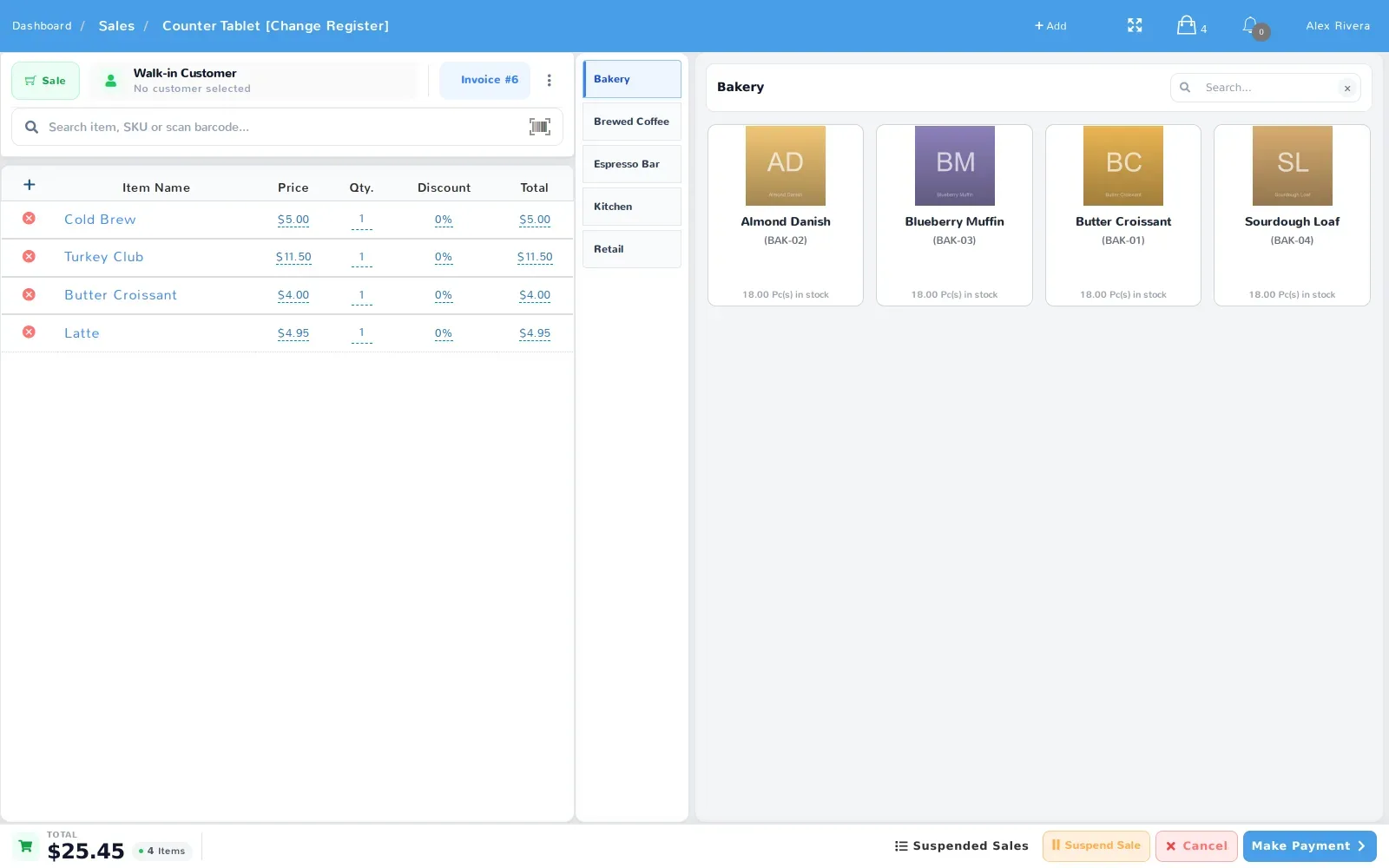
A full-screen sale screen built for fingers rather than a mouse: a large product grid, a clear cart, and a payment flow that takes a few taps. Turn it on per register, alongside the classic layout.
Choose Default or Touch UI for each register under Locations → Registers → POS UI.
The touch register is an option, not a migration. Each register picks its own layout, so a tablet at the counter and a keyboard-and-scanner station in the back office can each do what they are best at.
Locations → Registers → POS UI chooses Default or Touch UI for that register. Change it whenever you like; nothing else about the register changes.
Same items, customers, price rules, taxes, permissions, and reports. A sale rung up on the touch screen is an ordinary sale everywhere else.
It is the same web POS, so a tablet, an all-in-one touch terminal, or a touchscreen laptop all work with no app to install.
The screen is laid out around the order: keep it a walk-in or attach a customer, add items from the grid or a scanner, then take payment.

A dropped connection used to stop the line. The touch register keeps taking orders and printing receipts, then catches the store up when the link comes back.
Good to know: offline mode covers ringing up and receipting a sale. Anything that needs the server in the moment — a live card authorization, a gift card balance check — still waits for the connection, and the sales are held in that browser on that device, so sync them from the same tablet as soon as you are back.
The register notices and carries on instead of blocking the sale screen.
Sales are rung up and receipted at the register as usual while the connection is down.
Back online, the action bar shows Sync Offline Sales with a count of what is waiting. Press it — stock and reports only reflect those sales once they have been sent — or open Edit Offline Sales to check one first.
Browse by category and tap to add. Each tile shows the item, its number, and what is in stock at that location.
Start and finish a sale with no customer attached, or attach one at any point before payment.
A customer’s loyalty standing appears on the sale screen, so staff can mention it without going looking for it.
Name, mobile, company, and address can be corrected from the register, so bad data gets fixed the moment it is noticed.
The cart toolbar’s Menu holds what does not fit on screen: the cash drawer, trade-ins, gift cards, suspended sales, work orders, deliveries and the sale reports search.
Park an order and pick it up later. These are the same suspended sales that feed the kitchen display.
Orders are rung up and paid at a register — there is no floor plan, no seat numbers, and no separate checks per person.
Sending orders to a kitchen? See the kitchen display system, see it in use at a service window or a quick service counter, or read The Touch UI register in the Help Center.
Start a free trial, open Locations → Registers, and switch a register to Touch UI. The classic layout stays exactly where it is.